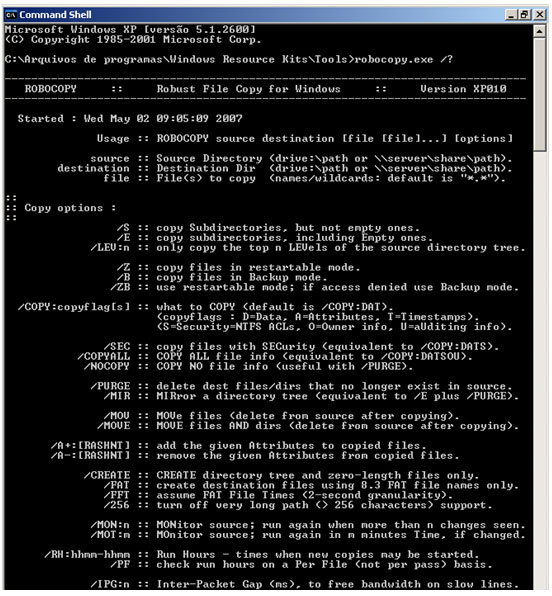
Robocopy (Robust File Copy) is one of the most powerful command-line tools provided by Microsoft.
Whether you are a sysadmin or a power user, it handles heavy-duty tasks that the standard Windows Explorer simply can’t.
In this guide, I’ll show you how to sync, move, backup, and most importantly accelerate file transfers, even across slow networks!
Robocopy Cheat Sheet: Quick Reference
| Switch / Flag | What it does | Best Use Case |
|---|---|---|
| /E | Copies all subdirectories | Maintaining full folder structure |
| /MIR | Mirrors a directory tree | 1:1 synchronization (Warning: deletes at destination) |
| /MT:32 | Multi-threaded copying | Significantly speeds up file transfers |
| /FFT | FAT File Times | Syncing with NAS or Linux servers |
| /ZB | Restartable mode | Large files or unstable network connections |
| /IPG:n | Inter-Packet Gap | Throttling speed on slow networks or VPNs |
| /MOVE | Moves files and directories | Data migration (clears source after copy) |
1. Syncing and Mirroring (/MIR)
If you want to keep two folders identical, /MIR is your essential switch. It mirrors the source to the destination perfectly.
robocopy C:\Source D:\Destination /E /MIRCaution: /MIR will delete files in the destination that no longer exist in the source to match it perfectly!
2. Copying over the Network to NAS (/FFT)
When syncing to a Linux-based server (like Synology, TrueNAS, or a Samba share), always add the /FFT switch.
This provides better granularity for file timestamps between NTFS and EXT4/XFS file systems, avoiding unnecessary re-copying.
robocopy C:\LocalData \\NAS\Backup /E /MIR /FFT /LOG:C:\logs\nas_sync.log3. Managing Bandwidth on Slow Networks (/IPG)
If you are running a backup over a VPN or a slow WAN link during business hours, Robocopy can saturate the bandwidth and slow down everyone else.
To prevent this, use the /IPG (Inter-Packet Gap) switch to throttle the transfer.
:: Throttling the copy to leave room for other network traffic
robocopy C:\Source \\RemoteServer\Share /E /ZB /IPG:125
A value of 125 or 250 adds a delay (in milliseconds) between packets, effectively acting as a speed limiter.
4. Multi-threading for Maximum Speed (/MT)
On modern CPUs, you can speed up the process by copying multiple files simultaneously.
Use /MT followed by the number of threads (8 is default, 32 is recommended, up to 128 is possible).
robocopy \\Server\Source C:\LocalBackup /E /ZB /R:5 /W:10 /MT:32 /COPYALL5. Pro Tip: Handling Special Characters
If your script fails because of folder names with accents or special characters, you must set the correct code page in your .bat file.
This is a common issue for international users.
@echo off chcp 1252 robocopy "C:\Source" "D:\Backup\Special_Chars" /ENote: Ensure you save your script file using ANSI encoding instead of UTF-8 for this to work.
🚀 Next Step: Automate Your Backups
Now that you’ve mastered Robocopy commands and switches, there’s no need to run your scripts manually every day. The real power of IT lies in automation.
Check out my guide on how to schedule Robocopy using Windows Task Scheduler and ensure your backups run silently and professionally on their own.
Reliable backups are the first step to system safety. But if your system is already failing to boot, check out my guide on how to create a bootable USB to get back on track.
Do you have a specific Robocopy scenario that is giving you trouble? Drop a comment below!