One of the most stressful situations for any user is pressing the power button and seeing nothing happen.
Whether you are at home or managing a company’s IT, diagnosing a PC that won’t boot follows a logical process of elimination.
Let’s dive into the most common causes and how to fix them.
1. The Basics: Power Supply and Cables
Before opening the case, check the obvious!
Is the power outlet working? I’ve seen cases where the problem was simply a loose power cord or a faulty power strip.
A quick tip: swap the power cable of your PC with your monitor’s cable (they are usually identical) to rule out a broken wire.
2. The “Screwdriver Test” (Faulty Power Button)
Sometimes the PC is fine, but the physical button on the case is broken.
To test this, locate the Power SW pins on the motherboard.
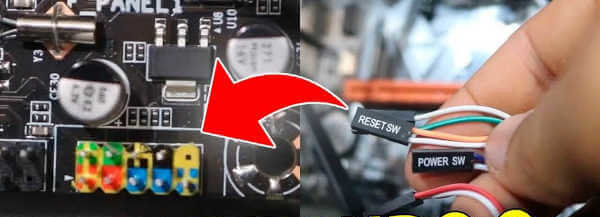
Unplug the connector and carefully touch both pins with a Phillips screwdriver to jumpstart the motherboard.
3. RAM and CMOS Battery (CR2032)
Dust is the enemy of hardware. Remove your RAM sticks and clean the gold contacts with a white pencil eraser.
Another “hidden” culprit is the CMOS Battery.
If the CR2032 battery is dead, some motherboards will simply refuse to trigger the power-on cycle.
It’s a cheap and easy fix!
4. A Real-World Pro Tip: The “Power Drain” Mystery
If your PC only turns on after you unplug it from the wall for 30 seconds and plug it back in, you likely have a Motherboard or PSU issue.
This often indicates failing capacitors that can’t discharge properly. If this is happening, start planning an upgrade soon.