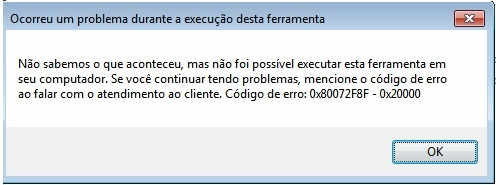
Are you seeing Error 0x80072f8f when running the Windows 10 Media Creation Tool on Windows 7 or 8.1?
This happens because your system is trying to connect to Microsoft’s servers using outdated security protocols (TLS 1.0).
Since modern servers require TLS 1.1 or 1.2, the connection is blocked. Here is the technical fix to enable the correct protocols via the Windows Registry.
Step-by-Step Fix: Enabling TLS 1.1 and 1.2
- Open Notepad.
- Copy and paste the following registry code:
Windows Registry Editor Version 5.00

[HKEY_LOCAL_MACHINE\SOFTWARE\Microsoft\Windows\CurrentVersion\Internet Settings\WinHttp]
"DefaultSecureProtocols"=dword:00000a00

[HKEY_LOCAL_MACHINE\SOFTWARE\Wow6432Node\Microsoft\Windows\CurrentVersion\Internet Settings\WinHttp]
"DefaultSecureProtocols"=dword:00000a00

[HKEY_LOCAL_MACHINE\SYSTEM\CurrentControlSet\Control\SecurityProviders\SCHANNEL\Protocols\TLS 1.1\Client]
"DisabledByDefault"=dword:00000000
"Enabled"=dword:00000001

[HKEY_LOCAL_MACHINE\SYSTEM\CurrentControlSet\Control\SecurityProviders\SCHANNEL\Protocols\TLS 1.2\Client]
"DisabledByDefault"=dword:00000000
"Enabled"=dword:00000001- Save the file as
enable-tls.reg(ensure the file extension is .reg and not .txt). - Double-click the file and accept the changes to the registry.
- Note for Windows 7 users: Download and install update KB3140245 (x86 or x64) before restarting.
- Restart your PC and run the Media Creation Tool again.
This should resolve the connectivity issue. Now, feel free to check my guide on How to upgrade Windows 7 to Windows 10.