Have you ever needed to edit an email address or a name that pops up in the “To…” field as soon as you start typing?
This post is for you.
I recently had to fix this for a company director. One of the department emails changed its point of contact.
The email address remained the same, but the person responsible for it changed. For example: the finance email used to belong to Maria, but now Paula is in charge.
Every time the director started typing “finance,” Outlook would suggest Maria’s name, who no longer works at the company.
He wanted it to show Paula’s name instead. He asked me: “How do I change the name that appears in the Auto-Complete suggestion?”
“Editing the Auto-complete list is a common task during profile migrations. If you are moving large amounts of user data, you should also use Robocopy for faster file transfers.”
Editing the Auto-Complete List in Outlook
After a quick research, I found a powerful tool called NK2Edit by NirSoft.
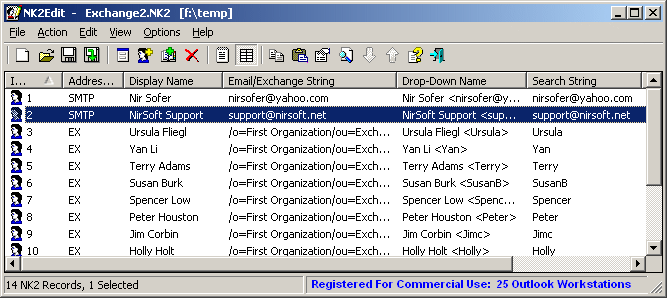
This software allows you to edit (and do much more with) the names and emails that appear in the “To…”, “CC…”, and “BCC…” fields.
The best part is how simple it is to use.
Note: Although NK2Edit is a third-party tool, it is widely recognized for its safety and efficiency in IT environments.”
How to change Office 2013 key via command prompt
Step-by-Step Guide:
- Download and Run: After downloading NK2Edit, simply run it. The program will automatically locate the file containing your Outlook Auto-Complete records.
- Locate and Edit: Once it displays the list, find the entry you want to change. Right-click it and select “Edit Selected Record.”
- Adjust the Fields: A window will open with the following options:
- Email/Exchange: The recipient’s email address. Change this if the address itself has changed.
- Display Name: This is the name that will be shown after you select the email.
- Drop-Down Name: This is the name that appears in the list while you are typing. (In my case, I replaced “Maria” with “Paula”).
- Search String: This defines what triggers the suggestion. You can set it so that typing “Finance” or “Paula” both bring up the same email.
- Email/Exchange: The recipient’s email address. Change this if the address itself has changed.
- Save Your Changes: You can ignore the “SMTP” and “Display” fields. Click OK to return to the main list.
Important: Before closing the program, you must SAVE your changes. Click the disk icon, go to File > Save Current NK2 File, or simply press Ctrl + S.
That’s it! Your Outlook Auto-Complete is now updated exactly how you want it.